Redacting scanned PDFs: what to check
Understand image-based pages, OCR, page positions and the resulting PDF.
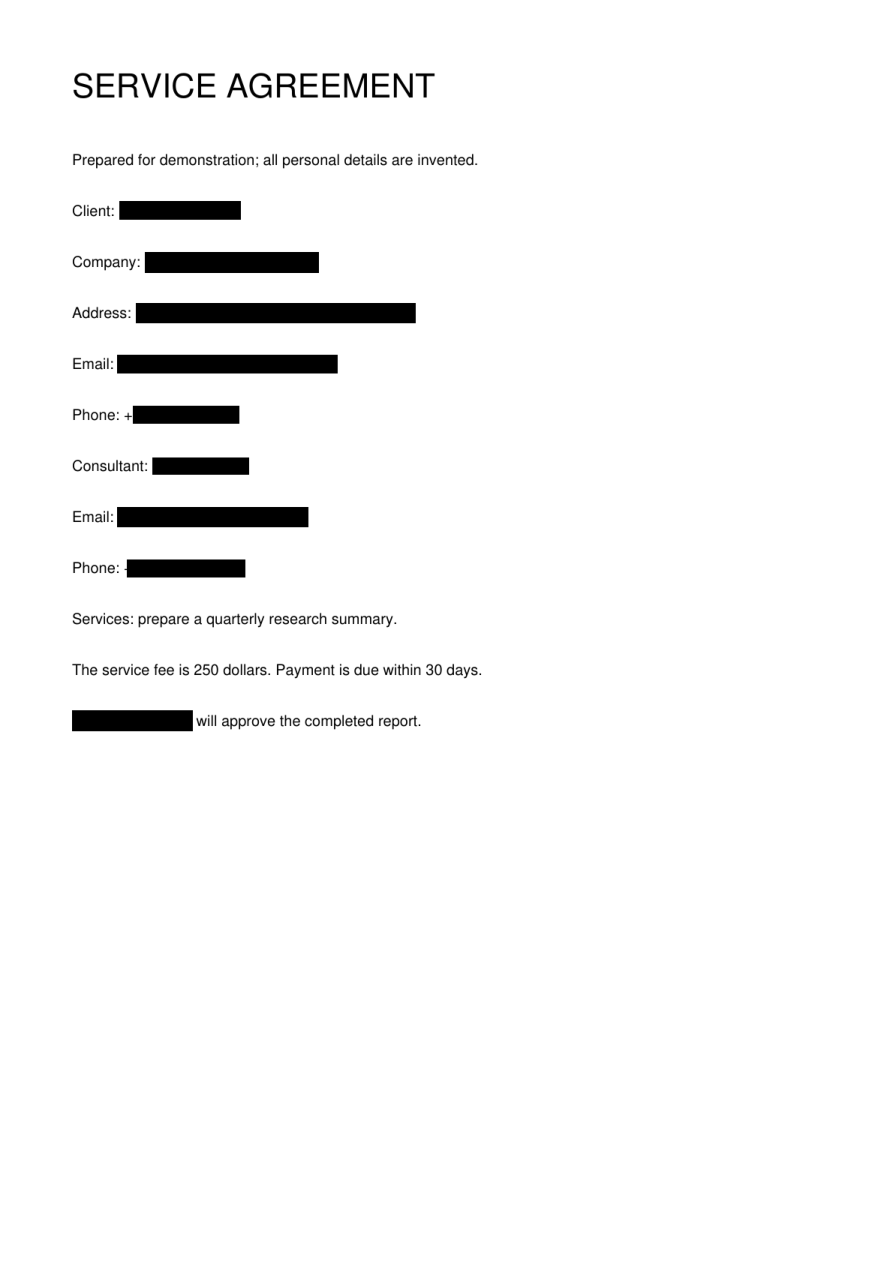
A scan starts as pixels
A scanned page is an image, even when it looks like ordinary text. Some PDFs also contain an OCR text layer. RedactTool reads page content, locates detected information and uses those positions to produce the redacted page. Recognition and correct positioning both matter: detecting a name is only useful if the right part of the page is covered.
Use the clearest available source
Upload the original scan where possible instead of a screenshot of a screenshot. Blurred characters, tight cropping, faint ink and handwriting can make recognition harder. Check that the file includes the intended pages and is within the current size and page limits. A better source is more useful than repeatedly submitting the same unreadable page.
Understand the output format
The current PDF output is rasterized: it contains the processed page image without a searchable text layer. Covered text is not preserved beneath an editable shape in that output. This is different from drawing a rectangle in a general PDF editor. Text that was not detected may still remain visible in the image and needs attention before sharing.
Check difficult regions at a useful zoom
Open the downloaded PDF and zoom in on signatures, handwritten notes, stamps, page edges and repeated names. Check both whether an intended detail was hidden and whether nearby content remains usable. If the next tool accepts text only, it will need OCR for this output; choose a supported text format when that is available instead.
Before you move on
- Use the original, legible scan.
- Check the page count before uploading.
- Inspect handwriting and page edges.
- Plan for OCR if downstream tools need text.